Did you know that you can edit video footage in Adobe Photoshop CS6? Take a look.
Saturday, November 8


Thursday, November 6
Easy to Understand Manual for the Alesis Multimix 8 USB (that thing we plug everything into in studio 6)
A little while ago I was working at the desk when a couple of people came in armed with a bass, amp, and reservation for Studio 6. They'd never used the equipment we have in there and were a little lost on where to plug their bass in. I'm not going to lie, I was too (Studio 6 confuses me, there, it's out, I feel the weight lifting off of my shoulders...), until I brought up everyone's favorite information companion, Google, and typed in the name of our mixer. That's when I found this, a really easy to understand beginners manual that details everything from what should plug into where, what button does which, and even some handy troubleshooting tips (chapter 5). There are even pictures! Gotta love those pictures.
Anywho, if you're ever in any need of a reference for our fancy Studio 6, try out this manual. I've taken the liberty of detailing a few of the more pertinent sections below, but don't take my list as the all inclusive, that's all it has, deal. It's just a handy little cheat sheet, not the full blown table of contents (pg 1-2).
Sections of possible interest:
Pg 21-23: Possibly the most potentially helpful section in this entire manual, the troubleshooting guide.
Pg 29-30: Terminology got you down? These pages give a nice little rundown for all the potentially head scratching words dispersed throughout the manual.
Anywho, if you're ever in any need of a reference for our fancy Studio 6, try out this manual. I've taken the liberty of detailing a few of the more pertinent sections below, but don't take my list as the all inclusive, that's all it has, deal. It's just a handy little cheat sheet, not the full blown table of contents (pg 1-2).
Sections of possible interest:
Pg 5: A nice how to on using the manual, if you have a question that my list doesn't answer, go here. It gives a nice little blurb about what each of its sections entail.
Pg 7: A picture that shows you what can hook into where. This is handy if someone brings in their own instrument, though most of what you can hook up has already been done for us (like the tape deck).
Pg 9-10: If you need a super in depth explanation of what each input/output is, go here.
Pg 11-13: Ever wonder what those knobs and buttons on our cheat sheets do? Explanation right here.
Pg 21-23: Possibly the most potentially helpful section in this entire manual, the troubleshooting guide.
Pg 29-30: Terminology got you down? These pages give a nice little rundown for all the potentially head scratching words dispersed throughout the manual.
Wednesday, November 5
Super Secret VLC features
You may or may not know of a program we have at the Center called VLC. VLC is a media player that is renown for playing a wide variety of media formats. What you may not know (and I didn't) is that VLC can do much more than just play media. Here is an article from Lifehacker.com which lists some awesome hidden features of VLC.
Features include Screen Capture, YouTube Downloads, Video File Conversion, Webcam Capture, and Podcast Subscription.
Features include Screen Capture, YouTube Downloads, Video File Conversion, Webcam Capture, and Podcast Subscription.
Tuesday, November 4
A usefull trick for the inspired student

Have you ever had problems with signing into your google accounts because they are sending you to the UD email login? Effected accounts include Youtube, gmail and ironically enough, blogger.com. This problem commonly results in anger and frustration (see power point slide shown above).
This problem has been shown to produce a 13% drop in productivity among Male students, and a 11% drop in productivity among Female students. A detailed study by the congressional non partisan research center indicates that there is a 27.65% chance that I am completely making this up.
In order to solve this problem, simply sign out of your UD email accounts. Being signed in to UD email (which is provided by Google) will block all your other Google accounts.
Happy election day!
Infogram
Hey
everyone!
I found this
website that is awesome if you are interested in creating charts or other kinds
of data visuals online. The website is called infogr.am. Infogram specializes in
helping you create infographics and charts are easy and quick to use. You can embed them into any project. The basic package (that is free, I might add)
includes more than 30 chart types, easy data editing, the ability to import
XLS, XLSX, and CSV files, and the ability to publish you infographic online.
Shannon
Sunday, November 2
Multimedia Staff Assemble! It's time to talk about Chrome on the desk computers.
Hey everybody,
As you may have noticed, we now have Chrome installed on every computer at the service desk!
So if you prefer to use Chrome over Firefox then this is good news for you. That being said, as of right now there are some unresolved issues between Chrome, WMS, and our StaffWeb:
If you follow these tips then your experience using Chrome on the service desk computers should be a lot more enjoyable.
As you may have noticed, we now have Chrome installed on every computer at the service desk!
 |
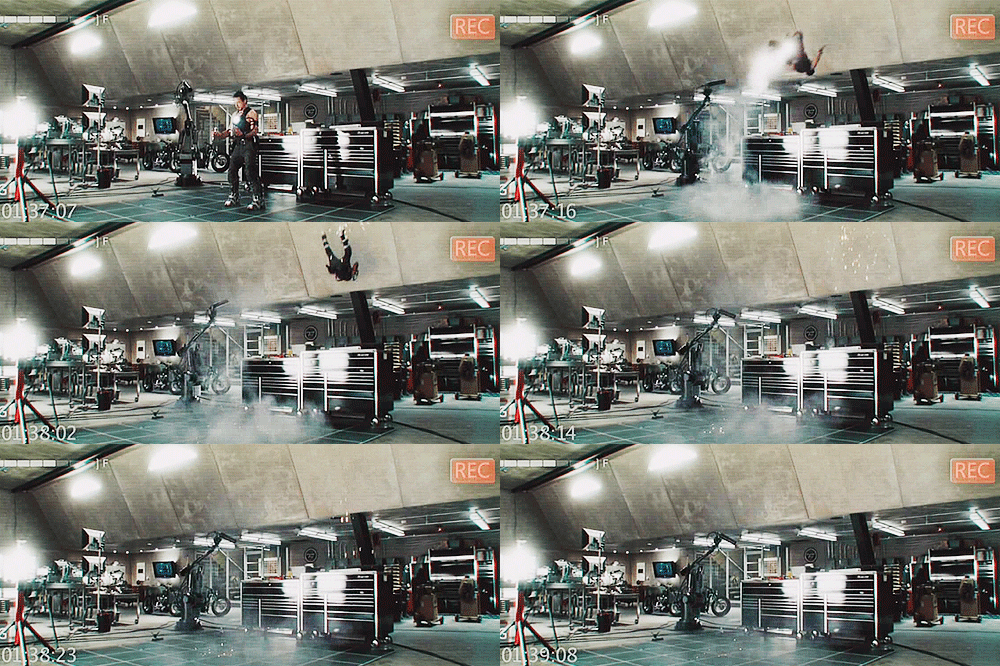
| Iron Man threw a party to celebrate the installation of Chrome. |
- Chrome by default will block any plugins from running on any webpages. The WMS staff website needs plug-ins to function in order to properly connect to the receipt printer. To make sure that plug-ins work, go to WMS, click on the puzzle piece with a red X on it in the top right corner, and select "Always allow plug-ins on multimedia.lib.udel.edu". If you don't see a puzzle piece icon, then Chrome isn't blocking plug-ins at that time and the receipt printer should be working.
- If you are using Chrome on either of the two computers that are on the left of the register, you will notice that the Staffweb Intranet webpage (the webpage where the shift switcher, operational protocols, telephone lists, etc. are) will not load due to Chrome automatically blocking any pop-up windows. So far, no one has found a way to stop Chrome from blocking the pop-up window. If you need to access the intranet, just use Firefox.
 |
| An example of what happens if you don't follow these tips. |
 |
| Loki has pre-approved of these tips. |
Saturday, November 1
powerpoint to dvd
Hey guys,
Today while Emily and I were working someone asked us how to make a powerpoint readable on a dvd. Lucky and Eve taught us how to do it because we weren't sure. Once their powerpoint is completed they save the file and then they need to open it in Adobe Media Encoder and convert the file extension to H.264. Once it is in H.264 format they can burn their dvd from idvd.
How to convert the file to H.264
1. Add your file in Adobe Media Encoder (File>Add Source)
2. Once your file is in the queue, click on it
3. A new window should pop up, click on the format
4. Scroll down and choose H.264
5. Make sure that you have chosen to export video and export audio, then click okay
6. Press the play button in the top right corner and the conversion will begin
7. Your file will save in the same folder that you got your original file from
Today while Emily and I were working someone asked us how to make a powerpoint readable on a dvd. Lucky and Eve taught us how to do it because we weren't sure. Once their powerpoint is completed they save the file and then they need to open it in Adobe Media Encoder and convert the file extension to H.264. Once it is in H.264 format they can burn their dvd from idvd.
How to convert the file to H.264
1. Add your file in Adobe Media Encoder (File>Add Source)
2. Once your file is in the queue, click on it
3. A new window should pop up, click on the format
4. Scroll down and choose H.264
5. Make sure that you have chosen to export video and export audio, then click okay
6. Press the play button in the top right corner and the conversion will begin
7. Your file will save in the same folder that you got your original file from
Subscribe to:
Posts (Atom)