This morning, a student reported that his professor told him his poster should be printed transverse, which puzzled everyone at the desk. What is transverse printing? Should we go down to Transverse City to ask? Actually, transverse printing is mandated in the UD IT "HP DesignJet Z6100 Poster Printing Instructions for Windows" which states Note: if your project is a landscape
design and the page height is less than 42", turn transverse printing
on. (These instructions are intended for poster printing in Smith Hall.)
Transverse printing describes Student Multimedia Design Center staff's standard operating practice for any poster of landscape orientation that is 35.5 inches wide or shorter. When setting up the printer for the actual size, the image is rotated 90° for printing because the transverse orientation supports more efficient use of the 36 inch wide paper. Less wasted paper = less expensive poster printing.


Thursday, May 14
iMovie Use and Cameras in the Studios
Recently, there have been many questions about filming directly into iMovie with the cameras in the studios. Due to the update in iMovie, the camera will not film directly into iMovie without some additional alterations to the camera.
For students who would like to use the camera, the step-by-step guide inside the studios will tell them exactly how to film into iMovie. However, before they do this, the camera must first be turned to A and it must be recording. The user will know it is recording due to the red light on the front of the camera.
The tape might need to be rewound as well. To check, turn the camera to the VCR setting and look in the eyepiece. The viewer will be able to see a time in the viewfinder. If it is not set to zero, rewind the tape using the control panel on the top of the camera. Switch the setting back to A, make sure the red light is recording, and start filming!
The film will now directly stream into iMovie, and the manual left in the studios will help the user import and record.
For students who would like to use the camera, the step-by-step guide inside the studios will tell them exactly how to film into iMovie. However, before they do this, the camera must first be turned to A and it must be recording. The user will know it is recording due to the red light on the front of the camera.
The tape might need to be rewound as well. To check, turn the camera to the VCR setting and look in the eyepiece. The viewer will be able to see a time in the viewfinder. If it is not set to zero, rewind the tape using the control panel on the top of the camera. Switch the setting back to A, make sure the red light is recording, and start filming!
The film will now directly stream into iMovie, and the manual left in the studios will help the user import and record.
Sunday, May 10
Programs, Programs Everywhere...(Part Two/Epic Conclusion)
And we are back like the giant second form of a previously defeated power rangers' monster! Here is part one if you missed it (in my unbiased opinion, it's a pretty spectacular read) and so you don't have to reread the thing (though again, pretty spectacular...), here's a brief summary:
Programs are a thing on computers. The center's computers have a ton of awesome ones. This is a (non-exhaustive) list of those programs I had never heard of before, plus simple descriptions, woo-hoo!
Now, as Captain Li Shang sang to us in one of my personal Disney favorites, let's get down to business...

I'm not entirely sure what version this is, but according to the ableton website, "Ableton Live 9 Lite is a customized version of the music making software" and includes such things as "Professional-quality audio recording and MIDI sequencing on up to 8 tracks".
Mac Only (Studio 6)

Windows Only


I'm just lumping these guys together because they're the same program, just different versions. From Apple's overview of Motion 5 this seems to be how you would go about making your own transitions and titles.
Mac Only (Motion 5 Studios 3 and 4)

According to what I believe is it's website, this "is a powerful free video converter, player, editor for Mac and Windows."
Mac and Windows

Numbers' Wikipedia page describes it as "a spreadsheet application developed by Apple Inc. as part of the iWork productivity suite alongside Keynote and Pages."
Mac Only

This User guide I found is actually for version 4.5 so it'll be great for a description, but if you're ever actually having trouble with it you might want to do a little more digging. According to the PDF this is used to create high-quality screencasts (recordings of computer screen output) and export them.
Mac Only (studios 3,4, and 5)

This user manual describes Soundtrack as being "designed to serve the art of motion picture sound post-production..." and that it "gives you many specialized tools and powerful features that you can use to create high-quality audio."
Mac Only

Windows Only

According to this website Textwrangler is "a general-purpose text editor for light-duty composition, data-file editing...and manipulation of text-oriented data."
Mac Only


Here's a manual for Toast Titanium 10 and a YouTube video for version 11. From the manual this program is described as including "everything you need to edit, copy , burn, and share your videos, movies, photos, music and data files on CD, DVD, and Blu-ray Disc™.
Mac Only (ten-5 and 6/eleven-3 and 4)

In this very amusing users guide VisualHub is said to "allow people to convert video to many popular formats with ease."
Mac Only

On its webpage VLC is described as a "simple, fast and powerful media player" that "plays everything: files, discs, webcams, devices and streams."
Mac and Windows
And with that, we made it! Thank you for sticking with me through this thoroughly (you can't deny it) exciting roller-coaster of programs and their mini descriptions.
Catch you all later! :)
Saturday, May 9
Job Opening: Multimedia Student Assistant

Hello UD students!
Need a campus job that will provide you with the hands-on experience required to compete in this multimedia-saturated job market?
Look no further!
The Student Multimedia Design Center located on the lower level of Morris Library is hiring students for the Multimedia Student Assistant position. All applicants must have prior experience in graphic design, video editing and/or audio software. Working knowledge of multimedia equipment is also desired, but not required.
To apply for this position, email your library application to Eve M. Ellis, eellis@udel.edu. Don’t forget to list multimedia skills on the form.
Applications are being accepted until all positions are filled.
Thursday, May 7
Class Specific Equipment
Hi everyone!
Every now and then students bring back equipment that comes in colored cases, like these:

This equipment does not go upfront with the rest of our equipment it goes into the cabinets by the laptop cart.
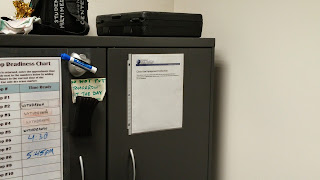
However when a student needs to check out a camera for example and we don't currently have any available at the desk we can ask them if they are in any classes down at The Center. If the class that they are in is on the list we can loan out one of the cameras from the cabinets in the back.
To access the list of classes go to the Staffweb and click on Guides and Information:


Every now and then students bring back equipment that comes in colored cases, like these:


To access the list of classes go to the Staffweb and click on Guides and Information:
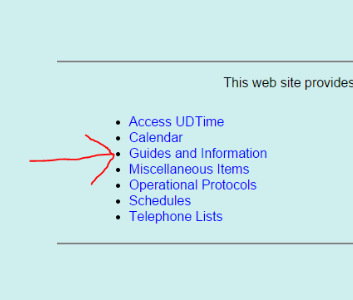
Then click on Class-Use Camera Information:

And finally click on shared Google Document:
Joel
Wednesday, May 6
Optional Parts
Hey guys!
It's getting to that busy time of the year. I just wanted to remind everyone to take optional pieces out of the kits when you are checking them back in. Things like extra batteries, hot shoe adapters and such!
Marcy
It's getting to that busy time of the year. I just wanted to remind everyone to take optional pieces out of the kits when you are checking them back in. Things like extra batteries, hot shoe adapters and such!
Marcy
Tuesday, May 5
"Pages per Sheet"
A student came to the desk with a problem printing. She was trying to use the "Pages per Sheet" function in the printer settings to print 4 images on one sheet of paper. Unfortunately, when her file was sent to the print station the computer said she was trying to print 900 copies. As it turns out, the Mac computers were not set up to use the "Pages per Sheet " function, which was causing the error. Though it is also possible to create a photoshop document that contains the 4 images and use that to print, the easiest fix to the problem is to simply move to a PC and print from there.
Subscribe to:
Posts (Atom)